Directions to Set a User's Profile in Moodle
- Log into the virtual classroom. http://el-camino.remote-learner.net.
- Locate your name in the top right hand corner and click on it.
- Example:

- Click on the Edit Profile tab:

- Without a long explanation as to why each setting should be done a specific way, here is a copy of the way you should set each setting to optimize your experience.
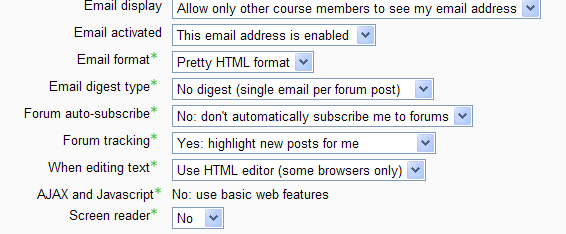
- Text version of picture above:
- Email display only allow other course members to see my email address.
- Email activated: this email address is enabled. (this is important so you can get messages from the instructor)
- Email format: Pretty HTML format
- Email Digest Type: (makes no difference if the auto-subscribed is turned off)
- Forum Auto-subscribe: No, don't automatically subscribe me to forums (if you turn this one you will get an email every time any student posts to any of the forums. You probably don't want hundreds of emails)
- Forum Tracking: Yes,highlight new posts for me
- Screen reader: No (unless you are visually impaired and using a special screen reader software.)
- City/Town: You can change this from the default setting of Buena Park to any city you want by erasing what is in the box and entering new information.

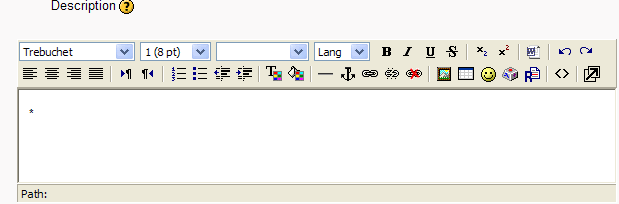
- Profile Description box: You can enter information about yourself here but do not enter phone number or street address or other personal information whick would jeopardize your safety. Just type information into the box or you can leave it all blank.
- Optional items include your picture (please upload the smallest possible file) and your contact information. I have uploaded your student ID number so it will print on the grade report I submit to the college. Your student ID and your phone number can not be viewed by other students. That information can only be viewed by the instructor.
|